
You no longer need to choose a long traditional route to publish a book. Thanks to platforms like Amazon Kindle Direct Publishing (KDP), today thousands of Authors like you can launch or publish their book and reach the audience worldwide.
Kindle Direct Publishing is the largest self-publishing platform in the world. Amazon generates an estimated $28 billion annually from book sales alone.
You can get 70% royalty rate on qualifying sales and the ability to publish both eBooks and print editions on Amazon KDP, all without a traditional publisher. KDP allows you to publish eBooks, paperback editions, and even hardcover books using a print-on-demand model. That means your book becomes available on Amazon without printing thousands of copies upfront.
But if you’re new to the platform, the process can feel technical at first. Between Amazon keywords, Amazon categories (BISAC), royalty options, formatting, and pricing decisions, there are several pieces to get right.
This guide walks you through the full process from preparing your manuscript to clicking the publish button so you can confidently launch your book on Kindle and join the group of those authors who have made their dream of publishing a book real.
Before you even log into the KDP dashboard, having your key assets ready will make the publishing process smoother. Most new authors underestimate how much preparation goes into publishing a professional book page. The manuscript, cover, metadata, and pricing strategy all play a role in how your book performs on Amazon.
Here are the essentials.
Your manuscript must be uploaded in a supported format, DOCX, HTML, EPUB, and KPF (Kindle Package Format, generated by Kindle Create). The most common options are EPUB and DOCX.
EPUB is generally the preferred format for eBooks because it automatically adapts to different Kindle screen sizes. DOCX files can also be uploaded, but Amazon converts them internally.
If you are formatting the book yourself, several tools used by self-publishing authors make this easier, including:
Formatting requirements vary by edition. An eBook is reflowable, meaning text adjusts to screen size. A print book requires fixed formatting and must usually be exported as a PDF with specific margins and trim size.
If you’re not comfortable with the technical side, working with a professional book publishing service can ensure your file is formatted correctly and meets every KDP requirement before upload.
Amazon Kindle recommends a book cover image with dimensions of 2,560 × 1,600 pixels (height × width), a minimum of 1,000 pixels on the longest side, and a file saved as JPG or TIFF. Higher resolution gives you sharper rendering across retina displays and Amazon’s zoom feature.
KDP does offer a built-in Cover Creator tool. But for serious authors, uploading your own professionally designed cover is strongly preferable. Cover Creator’s templates are recognizable to experienced readers and rarely produce a cover competitive with traditionally published books in your genre.
Platforms like Reedsy’s marketplace or Upwork can connect you with cover designers at various price points. You can also explore dedicated book cover design services if you want a polished, genre-appropriate result without the hassle of vetting individual freelancers.
And if you’re designing yourself, make sure the file meets the dimension requirements and that the image is RGB color, not CMYK (which is for commercial print, not digital).
Below, we’ve broken self-publishing into three realistic cost scenarios authors commonly choose in 2026. Each scenario reflects a different balance between time, money, and professional support. This way, you can see exactly what your budget covers and what it doesn’t before committing to a path.
Your book description, or blurb, is your most important sales tool on the Amazon page. You should draft this in advance.
A great blurb hooks the reader, introduces the central conflict or promise of the book, and ends with a call to action or a lingering question. The description field on KDP has a 4,000-character limit, which is plenty of space to craft a compelling pitch.
KDP also supports basic HTML formatting in book descriptions: <b> for bold, <i> for italics, <br> for line breaks, and <p> tags for paragraph spacing. Using these makes your description look polished on the Amazon product page rather than appearing as a single block of text.
The goal should not just be to summarize the book, but to convince readers to click the Buy button.
Every book on Amazon must be placed into Amazon categories (BISAC) and assigned Amazon keywords.
Categories determine where your book appears in Amazon’s browsing structure, while keywords help Amazon understand what search queries should trigger your book.
Many authors use tools like Publisher Rocket (tool) to research keyword opportunities and discover less competitive categories.
You should decide your launch price before starting the upload process. If you’re unsure what budget to set aside for your book, it helps to understand how much self-publishing a book actually costs. Pricing affects which royalty option you qualify for and influences your visibility in the Kindle marketplace.
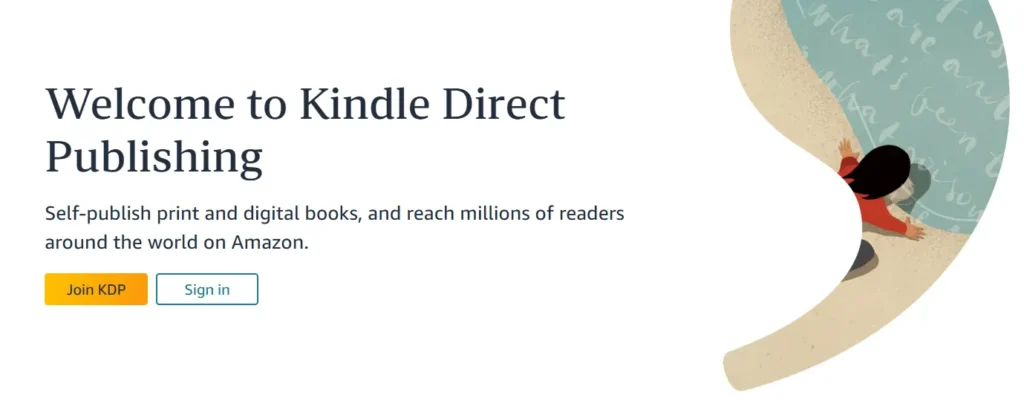
Go to kdp.amazon.com. If you already have an Amazon customer account, you can use those credentials to sign in to KDP, so you do not need to create a separate account. Your existing Amazon login works directly.
Once inside, Amazon will ask you to complete your KDP account information before you can receive royalty payments. This includes your tax information (a W-9 for US-based authors, or a W-8BEN for international authors to claim treaty benefits and potentially reduce tax withholding), your payment method (bank account via direct deposit or wire transfer), and your royalty currency.
After you set up your account, take a few minutes to explore Author Central, Amazon’s dedicated author portal, separate from your KDP dashboard. Author Central is where you build your public author profile: your bio, author photo, blog feed, and the ability to claim all your books under one author page. A complete Author Central profile adds credibility, especially when readers are deciding whether to buy more of your work.
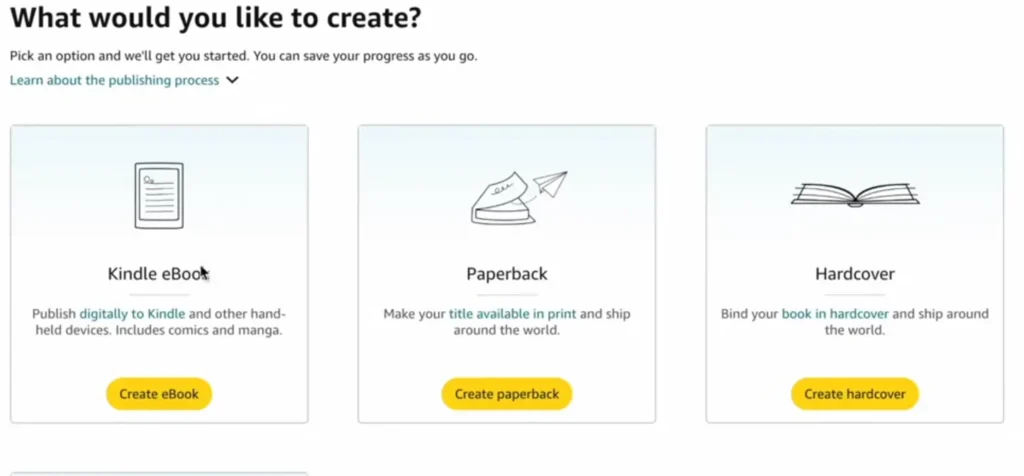
After clicking Create Kindle eBook, the first section asks for your book’s metadata.
Metadata is simply the information that defines your book page on Amazon.
Enter the exact title that appears on your book cover.
If the book is part of a series, you can add the series name and volume number. Amazon lets you automatically group your books on a series page, making it easier for readers to continue to the next book.
Series organization is especially important for fiction authors because it helps maintain reading order and improves visibility for later titles.
Next, you’ll enter the author’s name.
This can be your real name or a pen name. Once you have published your book, the author’s name becomes part of your permanent book metadata, so choose carefully.
You can also list additional contributors such as editors, illustrators, translators, or narrators.
All contributors can later be linked to your profile through Author Central.
Once you click “Create a new title” and select Kindle eBook (or paperback), you’ll land on the Book Details page.
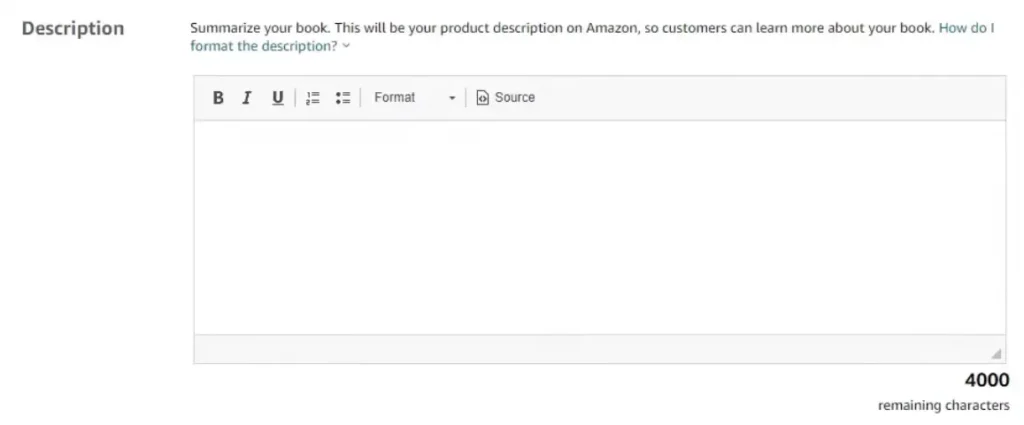
Your book description/blurb is one of the most important conversion elements on the Amazon page.
Readers typically decide whether to buy a book within seconds of scanning the cover and description.
The book description supports basic HTML tags like bold and italics, which can help structure the content for readability.
Most high-performing book descriptions follow a simple structure:
Avoid long, dense paragraphs. Short sections and visual spacing make the description easier to scan on mobile devices.
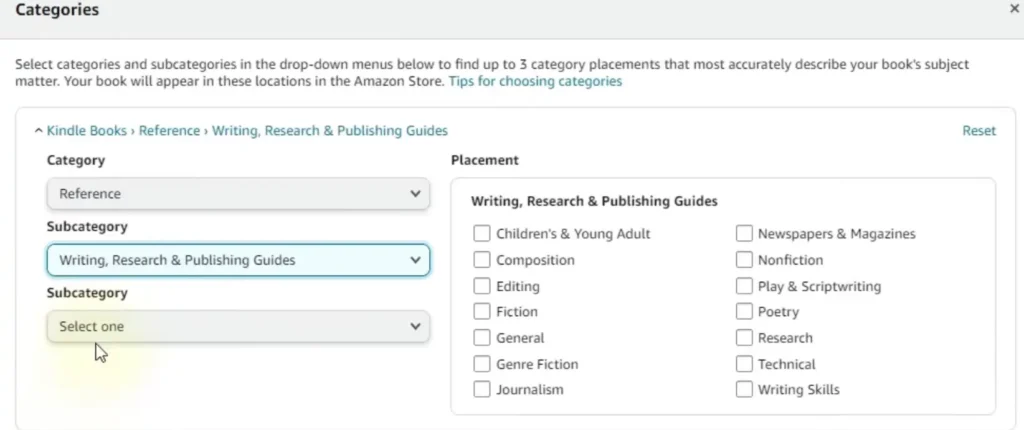
Amazon uses a category system based on BISAC (Book Industry Standards and Communications) codes. The codes are the standard genre classification system used across the publishing industry. During the publishing process, KDP allows you to select up to two categories for your book.
Amazon KDP allows you to select up to two categories for your book. However, two is not your actual ceiling. Amazon allows books to appear in up to ten categories total, but the additional categories must be requested directly through KDP support after your book goes live.
Do not make a mistake choosing categories because they determine which bestseller lists your book can rank in. Some authors accidentally choose outdated or irrelevant categories known informally as “ghost categories,” which no longer receive significant traffic.
You have seven slots for your Amazon keywords. Think like a reader. What terms would they type into the search bar to find a book like yours? Use a mix of single words and longer phrases that describe your book’s genre, tropes, character types, and setting.
For example, instead of just “romance,” a more effective keyword phrase might be “second chance small town romance.”
You will also be asked to set the age and grade range if your book is for children. For most adult fiction and non-fiction, you can leave this blank.
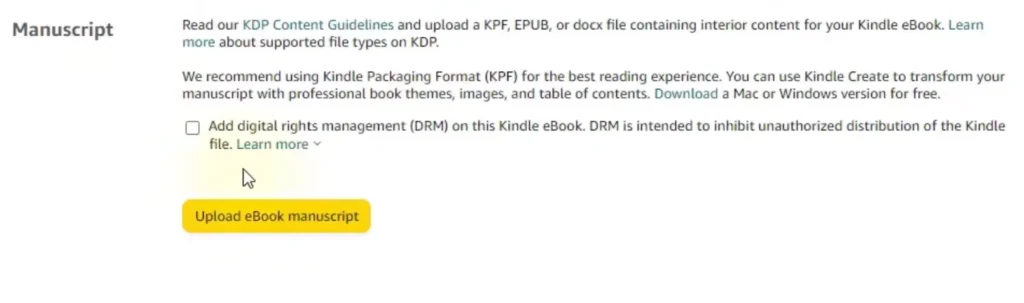
Next, you upload your formatted manuscript file.
Amazon accepts multiple file types, including EPUB file format, DOCX, and KPF files generated by Kindle tools.
During this stage, you also choose whether to enable DRM (Digital Rights Management).
DRM helps prevent unauthorized copying or file sharing of your eBook. Some authors enable it to reduce piracy, while others leave it disabled to avoid compatibility issues.
One important detail: the DRM setting cannot be changed after the book is published. If you want to switch DRM later, you must upload a new edition of the book.
Next, upload your manuscript. As mentioned, an EPUB file format is often preferred, but a properly formatted DOCX will also work.
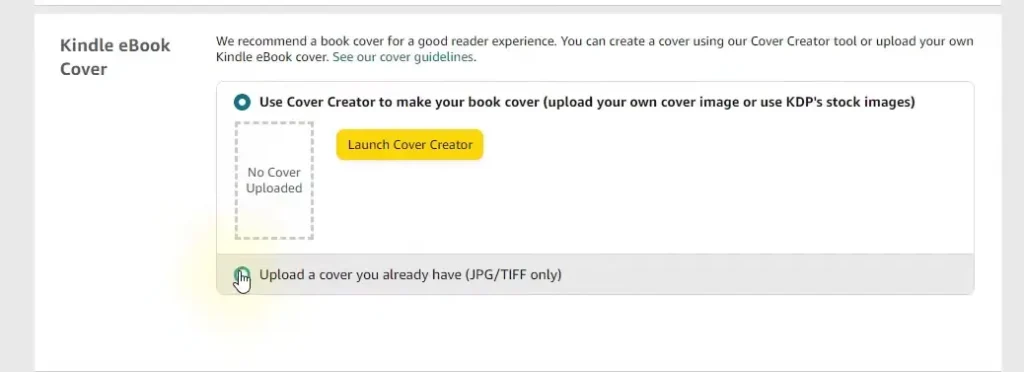
Upload your high-resolution cover file (JPG or TIFF). If you don’t have a book cover, you can use the Cover Creator, but for a professional look, a custom design is highly recommended.
A JPG or TIFF, 2,560 × 1,600 pixels recommended in the cover upload section. Amazon renders a preview on the right side of the screen.
Check this preview carefully. Does the title read clearly? Does the author’s name hold up at a small size? Is there any color banding or compression artifact visible in the preview? If anything looks off, address it before continuing.
Remember that most readers first see your book as a small thumbnail. Typography, color contrast, and genre cues must remain clear even at a reduced size.
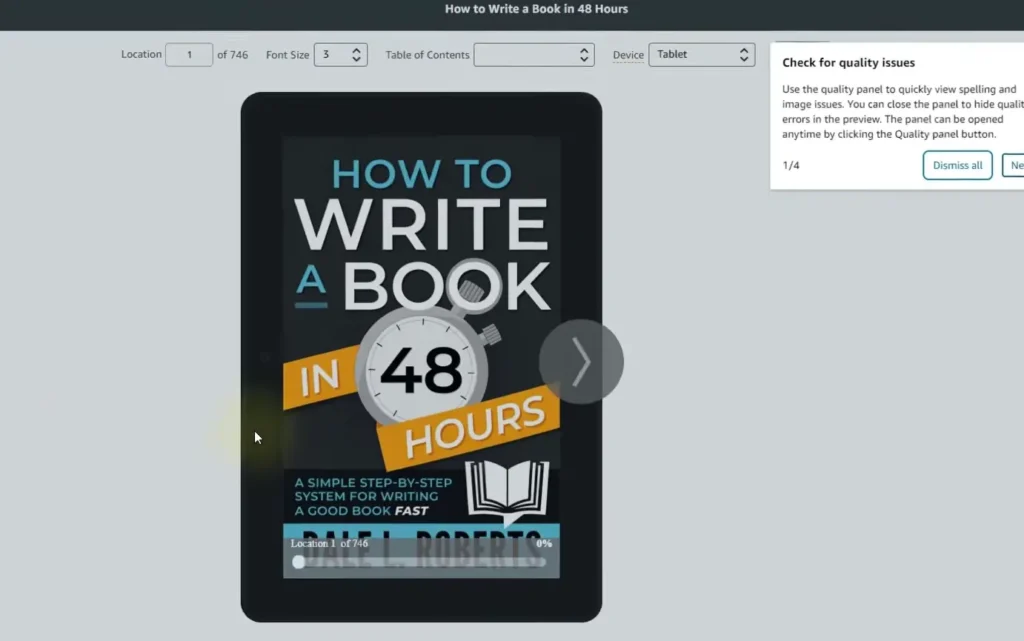
Before publishing, you should carefully review your book using Kindle Previewer.
This tool shows exactly how your book will appear across different Kindle devices and screen sizes.
Previewing your book helps you catch formatting issues such as:
Always review both the beginning and ending sections of the book to ensure consistent formatting.
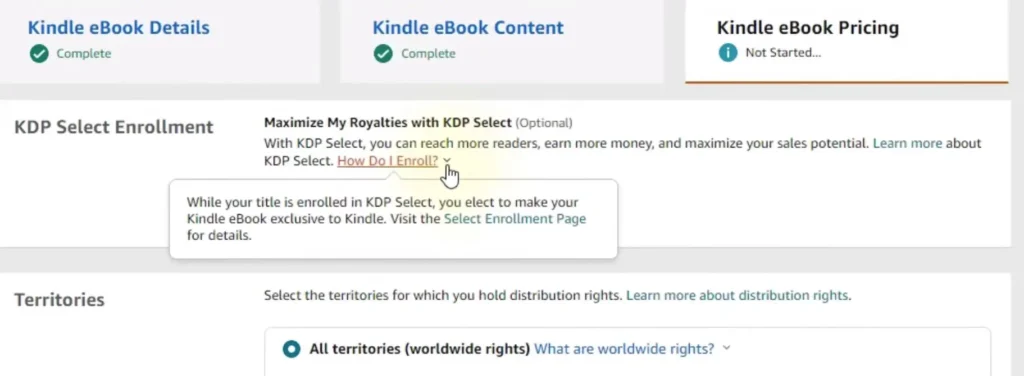
Amazon offers two royalty options for Kindle books:
The 70% royalty option applies when the book price falls between $2.99 and $9.99 in most territories.
If your price falls outside that range, Amazon automatically applies the 35% royalty option.
Delivery fees are also deducted from the royalty when using the 70% plan. These fees depend on the eBook’s file size.
Many authors price their eBooks between $2.99 and $4.99 to remain competitive while qualifying for the higher royalty.
Pricing strategies vary depending on your goals. For example, the first book in a series is sometimes priced lower to attract new readers.
International pricing can also be adjusted by territory if you want different prices in different markets.
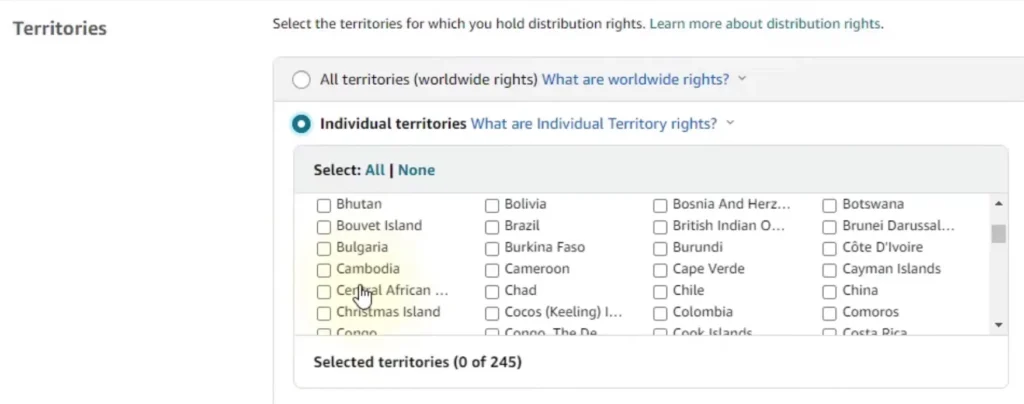
Before publishing, you must choose your distribution territories.
Most authors select worldwide rights, which allows Amazon to sell the book in all regions where Kindle stores operate.
If you hold limited publishing rights, you can restrict territories accordingly.
Once all fields are complete, click Publish.
After submission, Amazon reviews your book to ensure it meets its publishing guidelines. The review typically takes up to 72 hours. Once approved, your book appears on Amazon’s marketplace and is immediately available for purchase.
The moment your book appears on Amazon, resist the temptation to refresh your sales dashboard every twenty minutes. Instead, complete the tasks that set your book up for long-term visibility.
The first thing to do is visit your live book page and verify everything looks correct: the title, subtitle, author name, description formatting, cover image, categories, and Look Inside sample (if enabled). Errors in any of these should be corrected immediately through your KDP dashboard.
If you haven’t already, set up or update your Author Central profile at authorcentral.amazon.com. Claim your book under your author profile, write a compelling author bio, and add a professional author photo. Author Central also lets you add editorial reviews to your book page.
Yes, you don’t need a separate Amazon account to use Amazon KDP. You can simply sign in with your existing Amazon customer account and activate your Kindle Direct Publishing dashboard. The same login you use for buying books on Amazon works for publishing as well.
No, you do not need an ISBN for a Kindle eBook published through Amazon KDP. An ISBN is typically used for print formats, such as paperback or hardcover editions.
You keep full ownership of your book. Amazon does not take copyright or publishing rights. By uploading your book to Kindle Direct Publishing, you are simply giving Amazon permission to distribute and sell your book through its marketplace.
Yes, it is still possible to get a traditional publishing deal after self-publishing on Amazon KDP.
The fastest way to publish a book on Amazon KDP correctly is to prepare everything before starting the upload process.
Turn your manuscript into a professionally published book with Digital Scribblers. Contact us today and take the first step toward becoming a published author!
Sign up now to avail amazing discounts